


Frequently Asked Question
Learn how to use our plugins with step-by-step guides and practical examples
Content
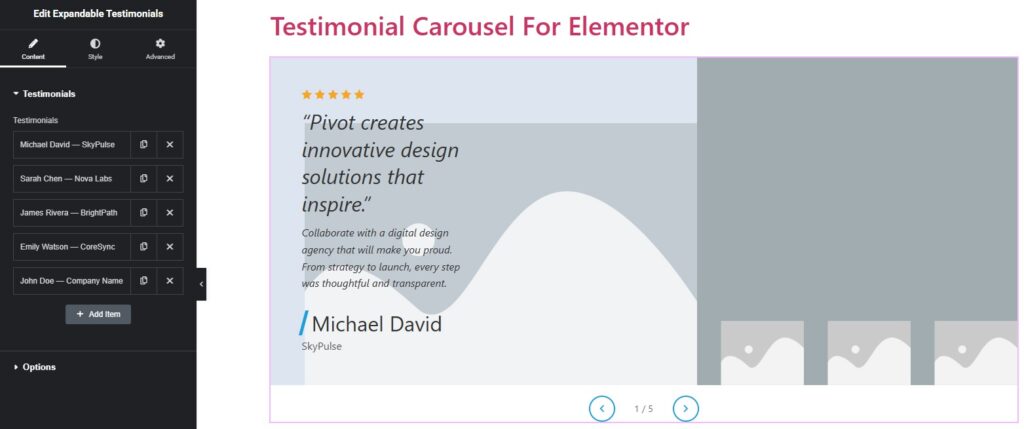
To add new testimonials to the widget, click the widget on the page, go to the Content tab, open the Testimonials section, and click the Add Item button.
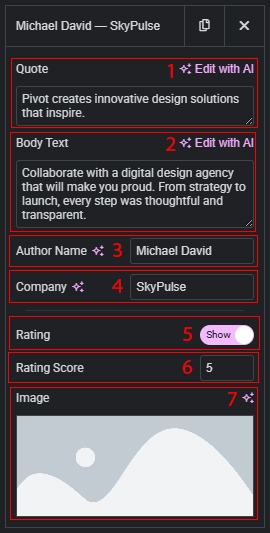
After adding one or more items, you can configure the following fields for each testimonial individually:
- Quote — enter the short headline quote for the testimonial. This text is displayed inside quotation marks in the expanded panel. Default: “Your testimonial headline quote.”
- Body Text — enter the full testimonial description. Displayed below the quote in the expanded panel. Default: “Detailed testimonial body text goes here.”
- Author Name — enter the reviewer name. Displayed in the author block at the bottom of the expanded panel. Default: “John Doe.
- Company — enter the company name, role, or subtitle. Displayed below the author name. Default: “Company Name.”
- Rating — show or hide the star rating for this testimonial. Enabled by default (Show). When hidden, no stars are rendered for this item.
- Rating Score — set the number of filled stars from 0 to 5 (whole numbers only). Remaining stars are shown as empty. Visible only when Rating is set to Show. Default: 5.
- Image — add, replace, or remove the author photo. The image is used in collapsed photo strips on desktop/tablet and in the expanded active panel. If no image is uploaded, the image area is omitted for that item.

 Expandable Testimonials