


Frequently Asked Question
Learn how to use our plugins with step-by-step guides and practical examples
Content
To add new reviews to the widget, click the widget on the page, go to the Content tab, and select the appropriate side.
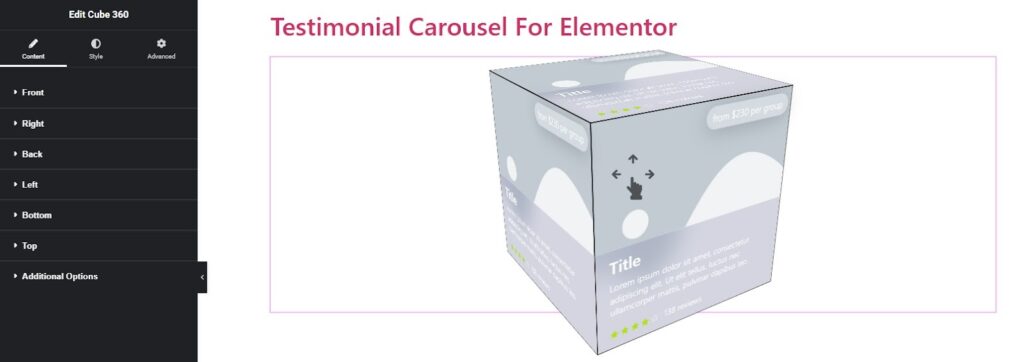
After adding the widget, you can customize each side of the cube individually:
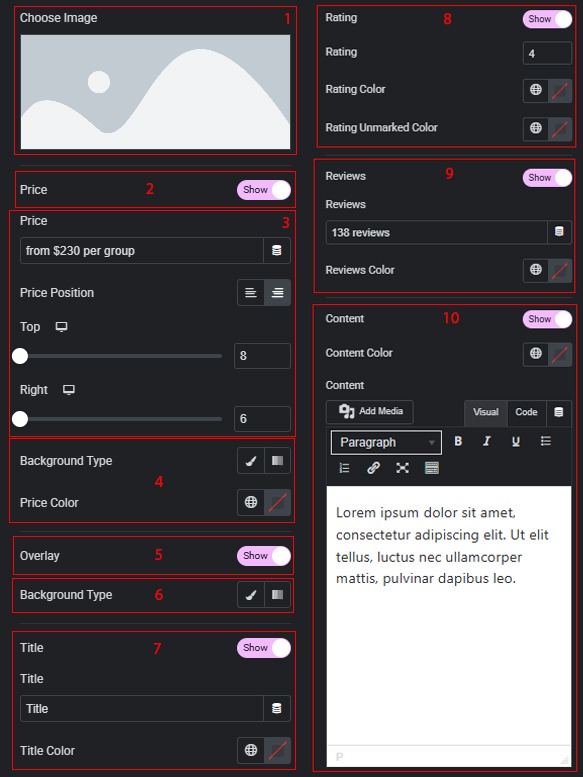
- Change the image for each side.
- Enable or disable the price display for each side.
- If the price display is enabled, customize the price value, position, and spacing (top, left, or right) depending on the selected position.
- If the price display is enabled, change the background and text color of the price for each side.
- Enable or disable the content overlay for each side.
- If the overlay is enabled, customize its background for each side.
- If the overlay is enabled, enable or disable the title. When enabled, you can edit the title content and colors for each side.
- If the overlay is enabled, enable or disable the rating. When enabled, you can set the rating (from 0 to 5) and customize colors for filled and unfilled icons for each side.
- If the overlay is enabled, enable or disable the review count. When enabled, you can edit the value and colors for each side.
- If the overlay is enabled, enable or disable the content display. When enabled, you can edit the content text and colors for each side.
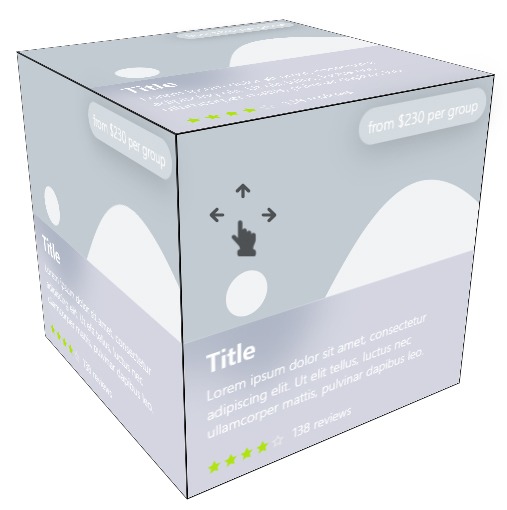
 Cube 360