


Frequently Asked Question
Learn how to use our plugins with step-by-step guides and practical examples
Content
To add a new tab to the widget, click the widget on the page, go to the Content tab, and click the Add Item button.
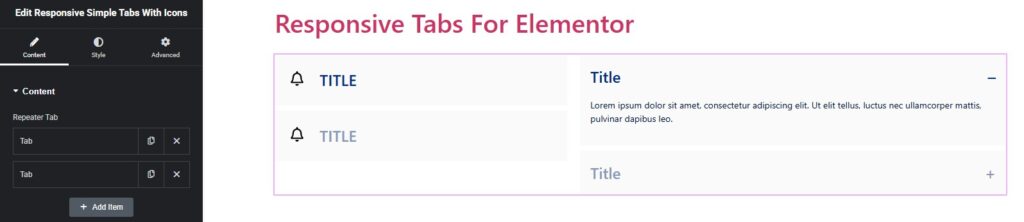
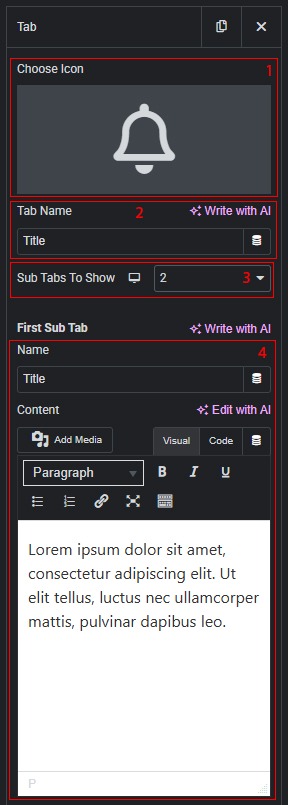
After adding one or more items, you can:
- Change the icon for each tab individually.
- Change the tab name for each tab individually.
- Select the number of sub-tabs to display (from 0 to 10).
- If the number of sub-tabs is set from 1 to 10, you can change the name and content of each sub-tab. If 0 is selected, only the main tab content can be changed.
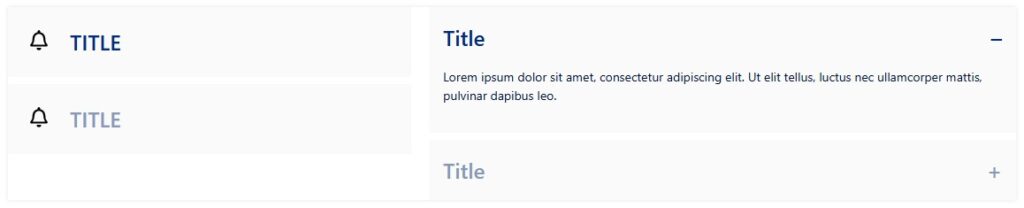
 Responsive Simple Tabs With Icons